
-
Frontpage
-
Getting Started
- Overview
- How to join
- Contacts & Support
-
Use cases
- Suppliers
- Transport companies
- Receiver of materials
-
How to use
- Vehicles & Drivers
- Waybills
-
Orders

-
Automation
- Volume measurement (Loadmon)
- Weighbridge
- Vehicle access control (VAC)
-
Integrations
- API Reference
-
Frequently asked questions
- FAQ
Create Order
Creating an order is a great way to save time and avoid mistakes when the same operation needs to be preformed repeatedly. Correctly created orders will make your operations a lot smoother and more time effective.
An example of previously created Orders:
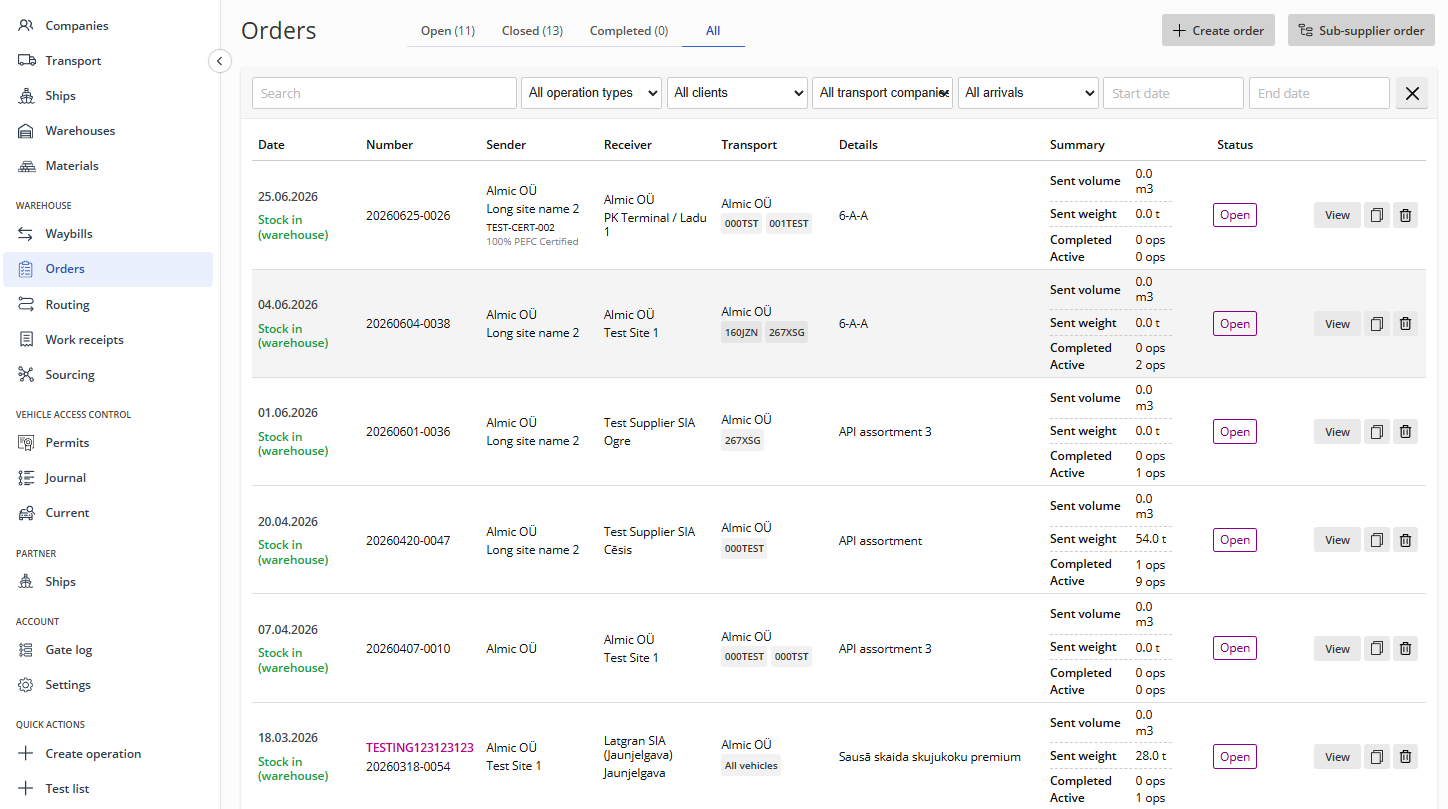
Orders have several mandatory fields, and just like with waybills, they also feature different additional fields. Filling these out allows you to provide a more complete picture of the order and personalize it according to your specific needs.
You can create a new order by pressing on Create order in the top right corner.
To create an Order you first need to have entered the following information related to your company: Receiver, Receiver site, Supplier, Material. It is also recommended to enter other optional information such as Sender site, Transport company, Vehicles and Certificates.
Under Status it's possible to choose whether the order is Open, Closed, Completed or Review is required.
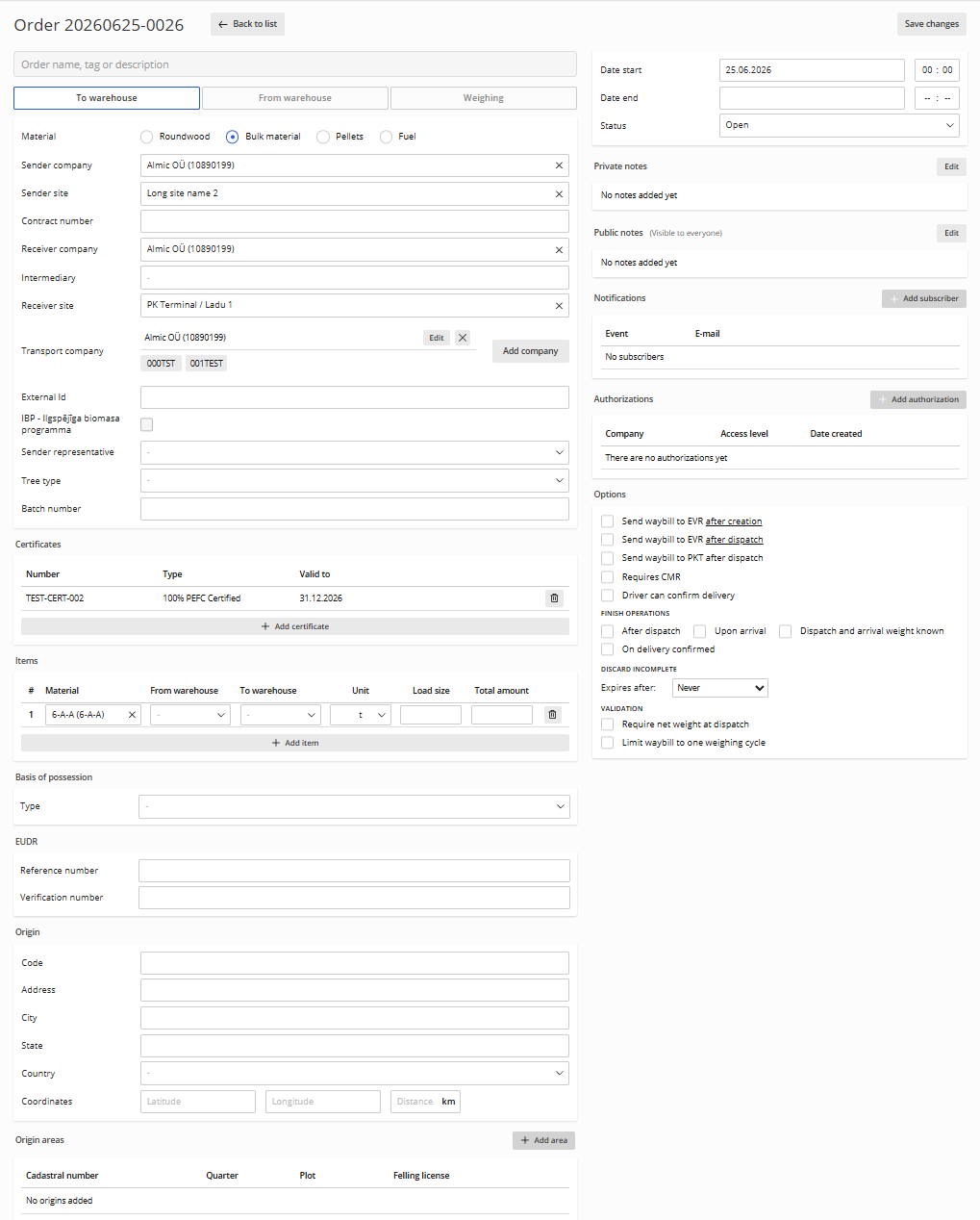
Under the Options section it's also possible to configure the order to your specific needs.
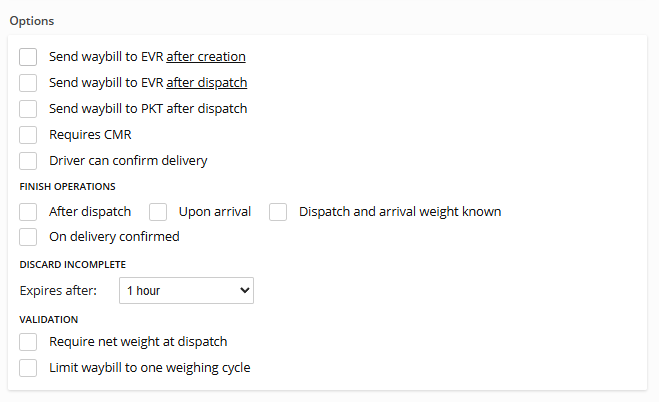
Requires CMR - Will allow CMR creation.
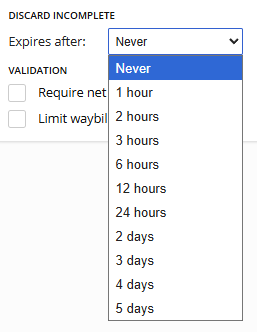
Discard incomplete option gives you the possibility to automatically cancel Active waybills after a specific time has ended.
For example:
Under Finish operations section there's 4 triggers which you can choose from on how and if you want the system to close the waybills automatically:
After dispatch - Two known weights when sending material
Upon Arrival - Two known weights when recieving material
Dispatch and arrival weight known - Four known weights at 2 different locations
On delivery confirmed - Driver can confirm the delivery of the material
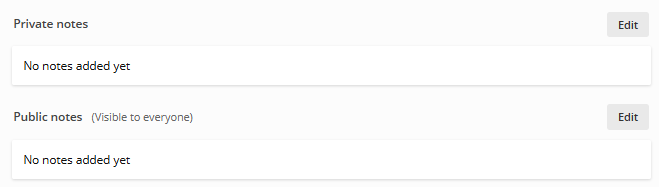
It's also possible to attach notes to the order which will then be shown on every waybill that's created with this order. While public notes are visible to everyone, private notes are visible to only accounts that are in your company.
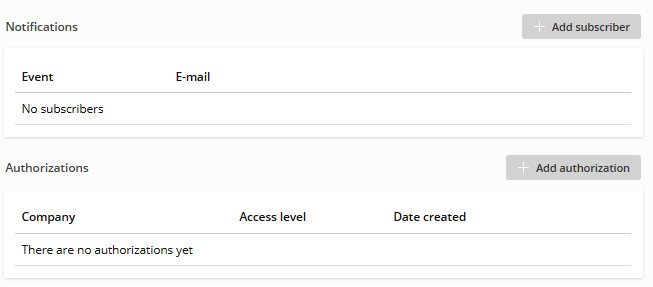
It's also possible to add Notifications and Authorizations to your order.
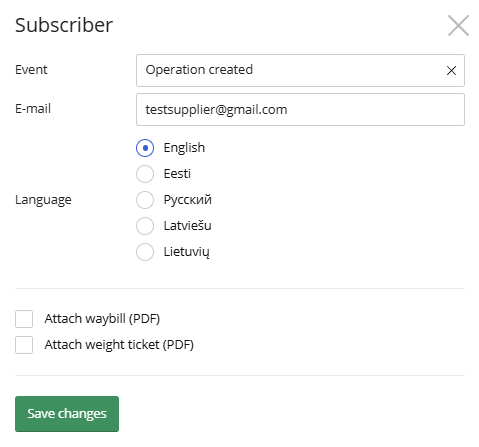
When adding a subscriber for your order the following window will open and youre able to choose what event triggers the E-mail being sent out, what language it will be sent and if waybill and/or weight ticket PDF should also be attached to the E-mail.
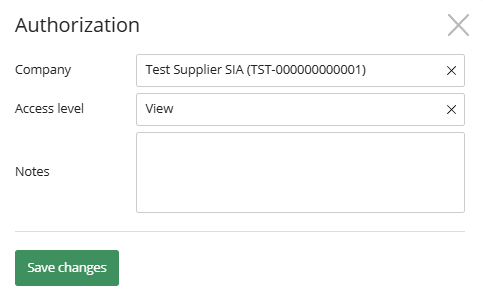
When adding an authorization to your order you can choose the company, it's acces level (view or edit) and add any notes if necessary (visible only to the creator of the order).
An example of previously created Orders:
Orders have several mandatory fields, and just like with waybills, they also feature different additional fields. Filling these out allows you to provide a more complete picture of the order and personalize it according to your specific needs.
You can create a new order by pressing on Create order in the top right corner.
To create an Order you first need to have entered the following information related to your company: Receiver, Receiver site, Supplier, Material. It is also recommended to enter other optional information such as Sender site, Transport company, Vehicles and Certificates.
Under Status it's possible to choose whether the order is Open, Closed, Completed or Review is required.
Under the Options section it's also possible to configure the order to your specific needs.
Requires CMR - Will allow CMR creation.
Discard incomplete option gives you the possibility to automatically cancel Active waybills after a specific time has ended.
For example:
Under Finish operations section there's 4 triggers which you can choose from on how and if you want the system to close the waybills automatically:
After dispatch - Two known weights when sending material
Upon Arrival - Two known weights when recieving material
Dispatch and arrival weight known - Four known weights at 2 different locations
On delivery confirmed - Driver can confirm the delivery of the material
It's also possible to attach notes to the order which will then be shown on every waybill that's created with this order. While public notes are visible to everyone, private notes are visible to only accounts that are in your company.
It's also possible to add Notifications and Authorizations to your order.
When adding a subscriber for your order the following window will open and youre able to choose what event triggers the E-mail being sent out, what language it will be sent and if waybill and/or weight ticket PDF should also be attached to the E-mail.
When adding an authorization to your order you can choose the company, it's acces level (view or edit) and add any notes if necessary (visible only to the creator of the order).